Fabulous Wynncraft
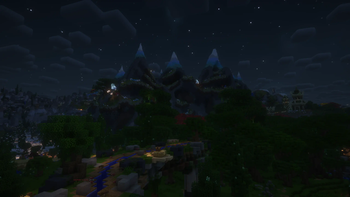
Fabulous Wynncraft is a modpack for Wynncraft that combines good visuals with smooth performance.
Описание

Fabulous Wynncraft




Fabulous Wynncraft is a modpack for Wynncraft that combines good visuals with smooth performance.
By downloading Fabulous Wynncraft, you agree to the disclaimers of Fabulously Optimized. The author can't be held responsible for any bans from Wynncraft.
Good Performance¹
It's built on the Fabulously Optimized framework, which keeps the game running smoothly.
Made for Wynncraft
The modpack includes a number of quality-of-life features, such as an in-game map, improved tooltips, custom menus, and in-game notes.
Attractive Visuals²
The modpack uses Complementary Shaders - Reimagined, Distant Horizons, and several other mods to improve the graphics.
¹ If you are experiencing low FPS, then wait a couple of minutes. Some mods like Distant Horizons take some time to load everything. If your FPS still don't increase, refer to the Performance Section for more help.
² If you have high enough FPS, then consider turning up some graphics settings for even better visuals. Refer to the Visuals Section for more info.
Installation Guide
This guide has partially been copied from the official Fabulously Optimized installation guide.
You can find additional installation instructions there. However, keep in mind that this modpack is exclusively made for Modrinth. Fabulously Optimized has been made for many more providers. Therefore some guides that work for Fabulously Optimized might not work for Fabulous Wynncraft.
Modrinth App
- On the sidebar, select the lens icon and search for "Fabulous Wynncraft".
- Click
⤓ Install. - The modpack will now install.
- Once installed, select the house icon the the sidebar and hover on the created instance under "Jump back in"
- Click ▶️ button to play.
Prism Launcher
You need Java 21 to play the game.
- Click
Add Instance - Select
Modrinthtab from the left - Search for "Fabulous Wynncraft"
- Select "Fabulous Wynncraft"
- Click
OK. - The modpack will now install.
- Once installed, double-click the icon to play.
Steam Deck + Prism Launcher
- With Steam Deck turned on, hold down
⏻(power) and tapSwitch to Desktop. - From the taskbar, select 👜 "Discover".
- Tap the searchbar on the top left corner, then press ❎ to open the on-screen keyboard.
- Search for "Prism Launcher" and tap
Installon the first result. - Launch it and go through its initial setup process, then close it.
- Open Steam app, select
Games→Add a Non-Steam Game to My Library...→ select Prism Launcher →ADD SELECTED PROGRAMS. - Close Steam and launch
Return to Gaming Mode. - Launch Prism Launcher from your game library.
- Tap
Add Instance - Select
Modrinthtab from the left - Search for "Fabulous Wynncraft"
- Select "Fabulous Wynncraft"
- Click
OK. - The modpack will now install.
- Once installed, double-tap the icon and wait.
- Tap
Options...→Controls...→Controller Settings... - Select a controller, then
Done→Done→Done - The game is now set up and you can just launch it from your game library from now on.
- Bonus: if you want a better icon in your game library, Follow these instructions.
P.S. If you get Deck-specific issues, try asking on r/SteamDeck as I don't have one.
Post Installation / Additional Tips
General
- It is recommended to allocate at least 4 GB of RAM for Minecraft. Depending on the Minecraft launcher you are using, this process is different. Please look up Tutorials on how to do this.
Server Commands
The following commands can only be executed on Wynncraft.
| Command | Action | Reason |
|---|---|---|
/toggle ghosts low | Shows less players around you | This might improve your FPS |
Performance
- On the Wynncraft server, do
/toggle ghosts lowto show less players around you - Lower the Distant Horizons (a mod that lets you see further) settings under
ESC > Options... > [Squre icon on the top left with yellow, green, and blue squares with a black border] > Advanced Options > Graphics > Render Quality. Recommended settings to lower first:- LOD Dropoff Distance (
LowestandLowwill make terrain further away look worse quicker and increase your FPS) - Vertical Quality (Lower Number = will make terrain further away have less detail and increase your FPS)
- LOD Dropoff Distance (
- Lower your shader (shaders improve lighting and other visual aspects) settings under
ESC > Options... > Video Settings... > Shader Packs... > Shader Pack Settings... > Performance Settings(don't forget to hitApplyafterwards). Recommended settings to lower first:- Shadow Distance (a lower value will decrease the distance in which you will still see shadows and increase your FPS)
- Entity Shadows (turning this off will cause entities like players and mosters to not have shadows and increase your FPS)
- Turn shaders (shaders improve lighting and other visual aspects) off completely under
ESC > Options... > Video Settings... > Shader Packs... > Shaders: Enabled(don't forget to hitApply). Your game might freeze for a little while. - Turn Distant Horizons (a mod that lets you see further) off completely under
ESC > Options... > [Squre icon on the top left with yellow, green, and blue squares with a black border] > Enable Rendering. To do this, click on the button that saysTrue. Your game might freeze for a little while.
Visuals
To improve your visuals you can do the oppisite from what is described in the Performance Section. In addition, you can increase more shader settings under ESC > Options... > Video Settings... > Shader Packs... > Shader Pack Settings... > Performance Settings.
How to build
This section is targeted towards advanced users.
- Clone
https://github.com/tobilinz/packwiz-basedon - Change into the
packwiz-basedondirectory - Build the fork using
go build -o packwiz main.go - Clone this project
- Move the output binary of the third step (
packwiz) to the cloned repository of step 4 - Execute
./packwiz modrinth export - A
.mrpackfile should show up after the command finished executing
NOTE: Using the official packwiz binary won't work because this modpack makes use of some custom functionality I added.
Галерея